Add your certificate to LinkedIn
TL;DR: Congratulations on graduating. Here is how to put your certificate on your LinkedIn profile, step by step, so anyone who views it can click through and check that it's real. It takes about 5 minutes.
Why put it on LinkedIn
Employers are looking for people who can work with AI. In March 2025, LinkedIn named AI literacy the fastest-growing skill in the US. A year earlier, Microsoft and LinkedIn asked 31,000 people in 31 countries about AI at work: 66% of the leaders said they wouldn't hire someone without AI skills, and 71% said they'd rather hire a less experienced candidate with AI skills than a more experienced one without them.
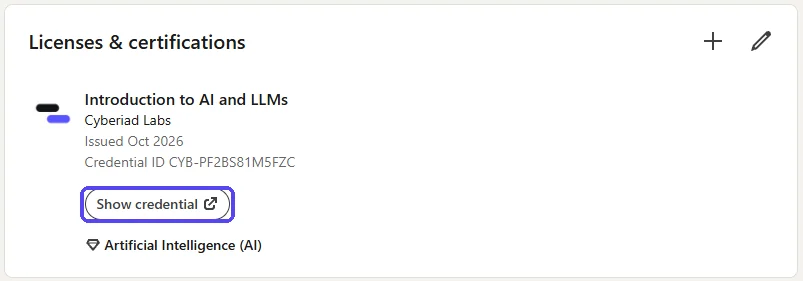
Anyone can type "AI" in the skills on their profile. A certificate is different, because it can be checked. The link you add in step 4 puts a Show credential button under it. One click and a recruiter lands on our site, which says the certificate is real, who it belongs to, and when it was earned.
And when you post it, your network sees it too. Some of them might be a recruiter!
1. Open your certificate and show the LinkedIn details
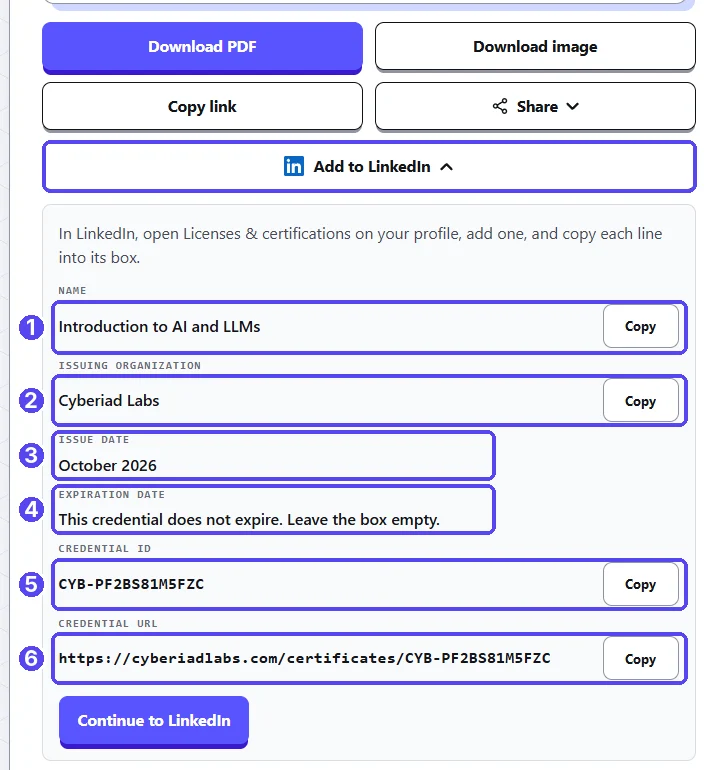
Go to your certificate page on Cyberiad Labs. Under the certificate, click Add to LinkedIn. A panel opens with every line you need, each with its own Copy button.
Keep this tab open. You'll come back to it in step 4.
2. Go to your LinkedIn profile
Log in to linkedin.com. Click Me in the top bar, then View profile.
Now scroll down your profile and look for a section called Licenses & certifications. If you can not find this section, no worry, we will show you how to add it.
3. Open the "Add license or certification" form
The shortcut: on your certificate page, in the Add to LinkedIn panel, click Continue to LinkedIn. It opens the form directly, in a new tab. Skip to step 4.
Continue to LinkedIn (opens LinkedIn in a new tab)
Or open it from your profile:
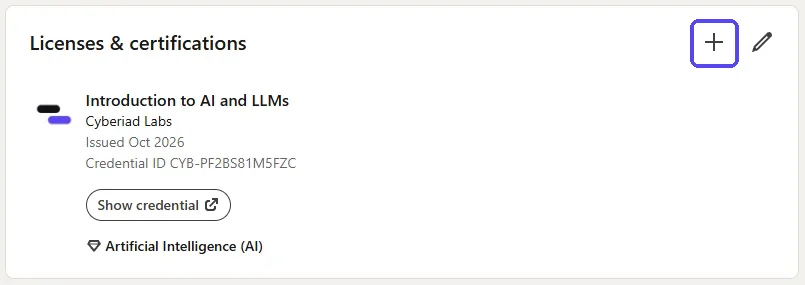
If you see Licenses & certifications: click the + at the top right of that section, and skip to step 4.
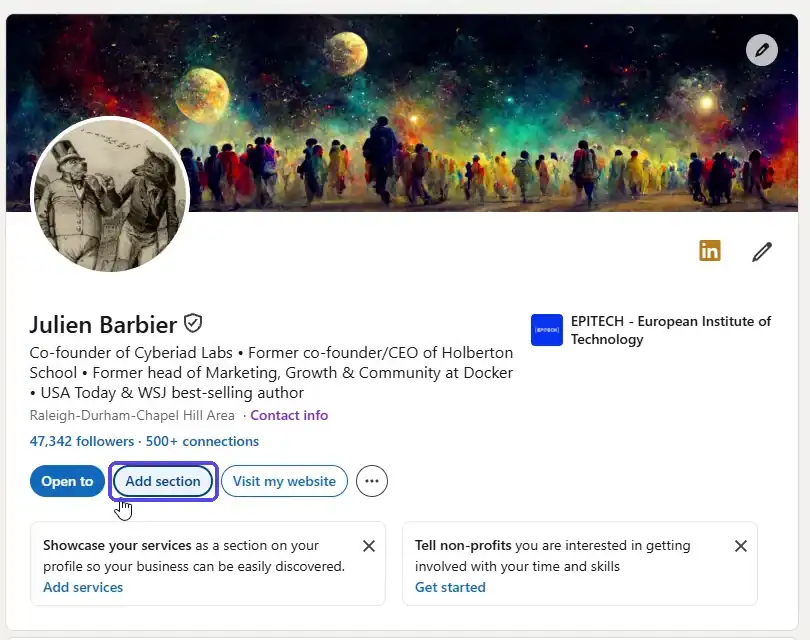
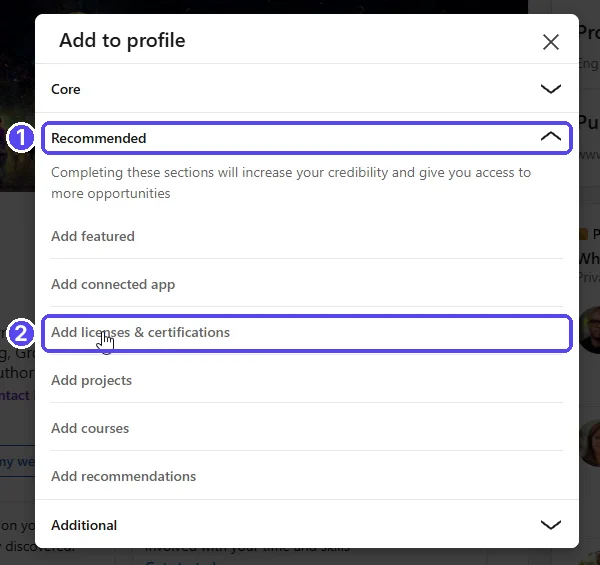
If the section isn't on your profile yet (most people): you need to add the section first. Scroll back to the top of your profile and click Add section, under your name.
An Add to profile window opens:
- Click Recommended to open that group.
- Click Add licenses & certifications.
4. Copy each line from your certificate into LinkedIn
The Add license or certification form is now open. Switch back and forth between the two tabs: click Copy on the certificate page, then paste into the matching box on LinkedIn.
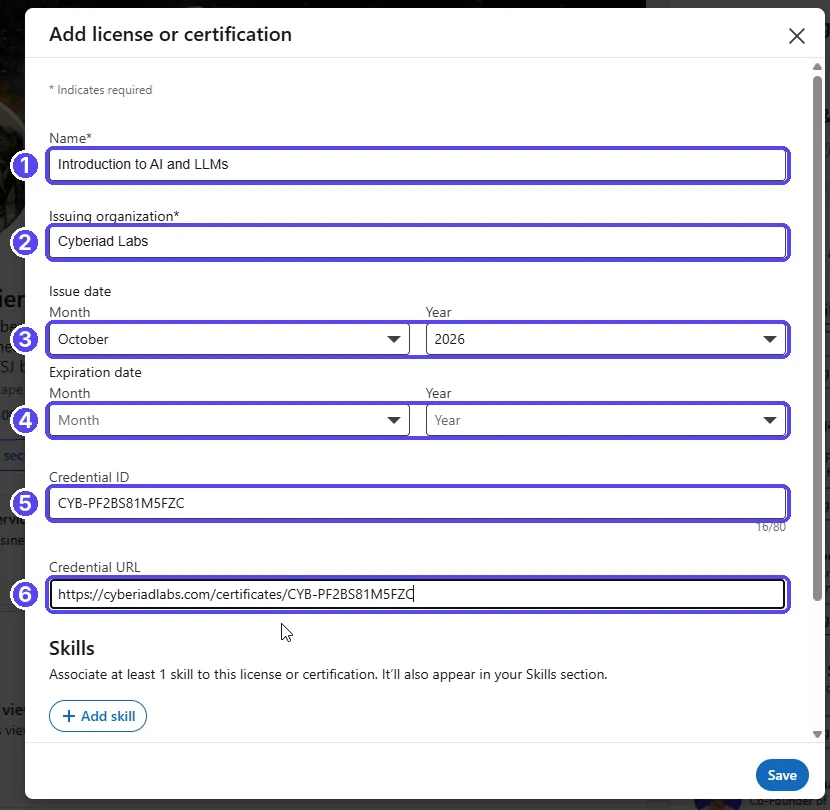
- Name: paste
Introduction to AI and LLMs. - Issuing organization: paste
Cyberiad Labs, then click Cyberiad Labs in the list that drops down. That's what puts our logo next to your certificate. - Issue date: choose the month and year when the certificate was issued. They match the issue date on your certificate page.
- Expiration date: leave both boxes empty. Your certificate doesn't expire.
- Credential ID: paste your ID. It starts with
CYB-. - Credential URL: paste your full link. It ends with the same ID.
Don't skip the Credential URL. It's what creates the Show credential button on your profile, which lets recruiters confirm your certificate is real.
5. Add the skill "Artificial Intelligence (AI)"
Scroll down inside the form to Skills and click + Add skill.
- Type
Artificialin the box. - Click Artificial Intelligence (AI) in the suggestions.
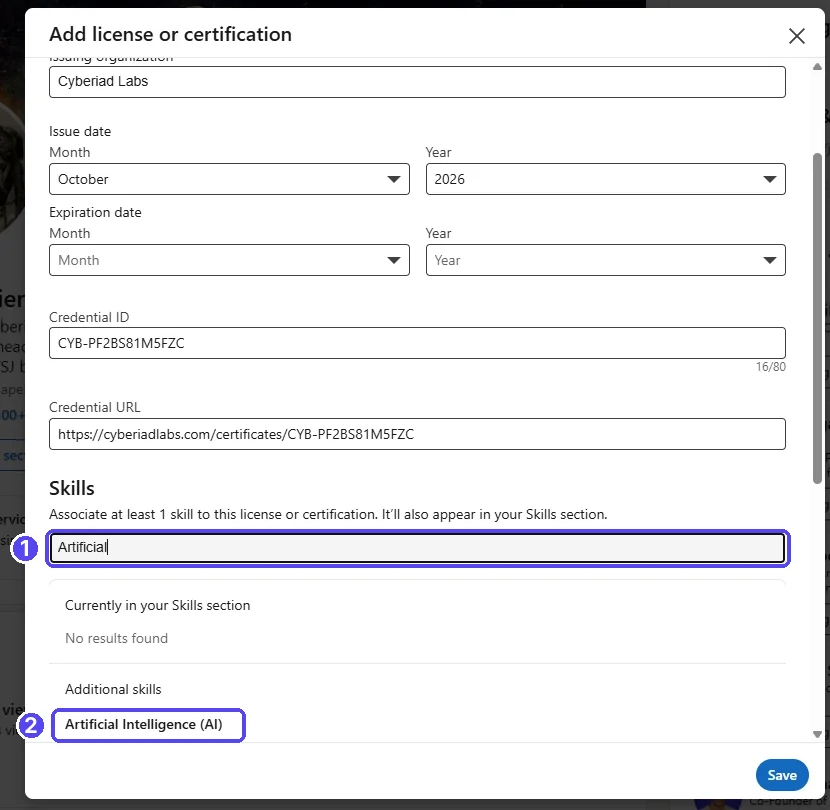
The skill now shows under Skills. It will also appear in the Skills section of your profile, linked to this certificate.
6. Click Save
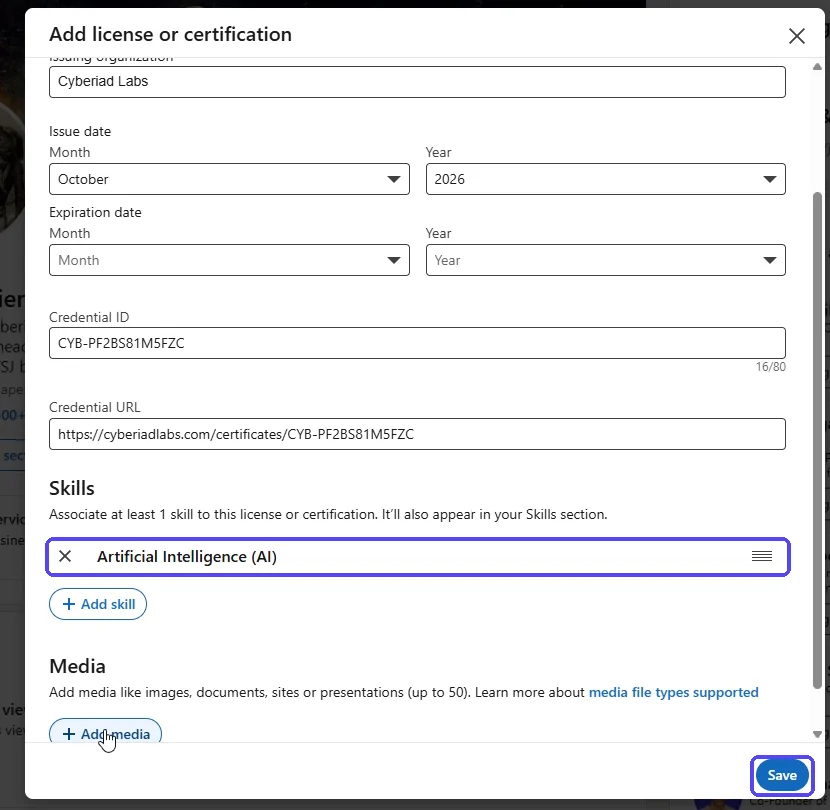
You can ignore Media. Click the blue Save button at the bottom right.
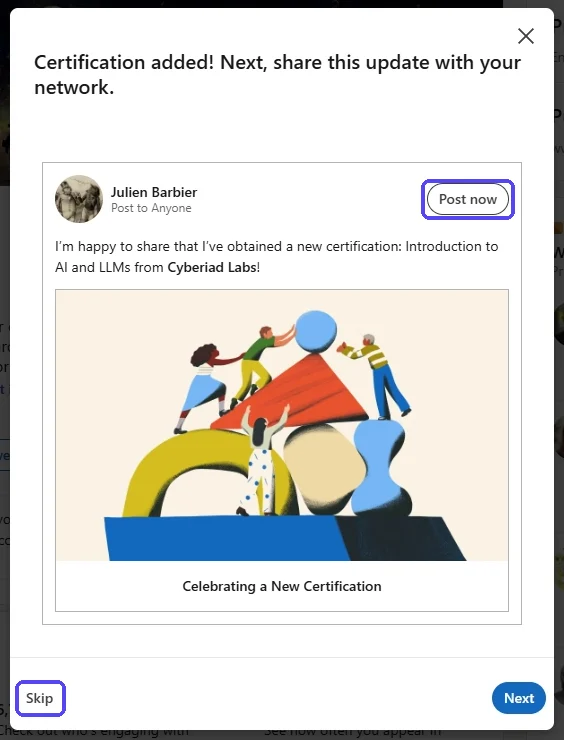
LinkedIn then offers to announce it to your network. Click Post now to share it, or Skip to add it quietly.
7. Check that it worked
Your certificate now appears under Licenses & certifications, with the Cyberiad Labs logo and the AI skill. Click Show credential to test it.
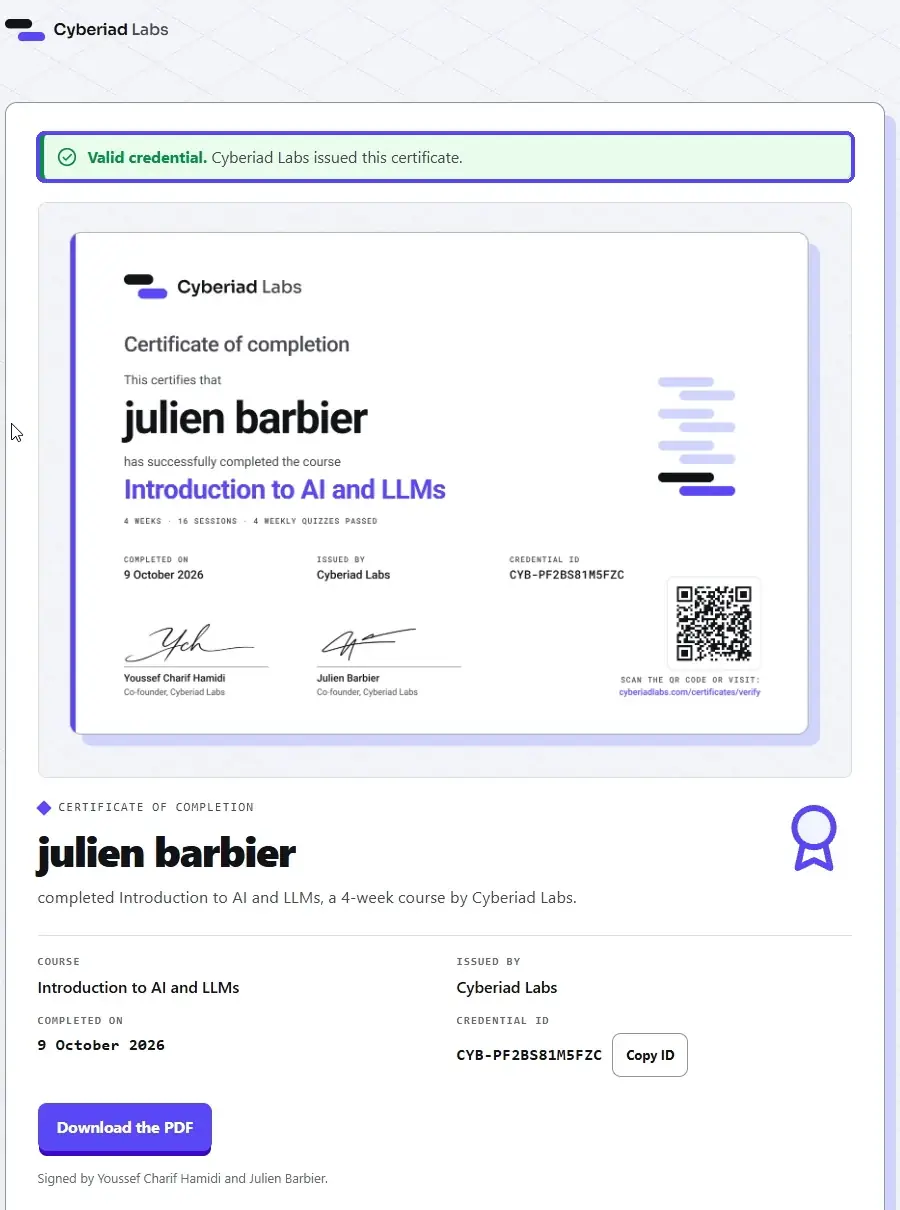
It should open your certificate on cyberiadlabs.com with a green Valid credential banner. That's it. You're done.
If something looks off
I can't find Add licenses & certifications. In the Add to profile window, it's inside the Recommended group, which starts closed. Click Recommended to open it. If you already have a Licenses & certifications section, the option won't show here; use the + on that section instead.
There's no Show credential button on my profile. The Credential URL is missing. Click the pencil on your Licenses & certifications section, open the certificate, paste your Credential URL, and save.
There's a grey box instead of the Cyberiad Labs logo. The organization was typed but not picked from the list. Edit the certificate, clear the Issuing organization box, type Cyberiad Labs again, and click it in the dropdown.
I made a typo. How do I fix it? On your profile, click the pencil icon on the Licenses & certifications section, then the pencil next to the certificate. Fix it and click Save.
Can I do this on my phone? Yes, the LinkedIn app has the same form, but the buttons are in different places and copying between apps is slower. A computer is easier.
Still stuck? Ask a classmate on Discord :)
Sources
- LinkedIn News, LinkedIn Skills on the Rise 2025: The 15 fastest-growing skills in the U.S., 19 March 2025.
- Microsoft and LinkedIn, 2024 Work Trend Index: AI at Work Is Here. Now Comes the Hard Part, May 2024.